
Start with the path, not the promise
A dictation app can feel wonderfully simple: press a shortcut, speak, and watch words land in the document you were already writing. The privacy decision is less simple, because the useful question comes before the transcript appears. What happened to the microphone audio on its way there?
Words such as private, secure, encrypted, and no training can all be meaningful. None answers every question on its own. A service may avoid training on recordings while still receiving them to transcribe. An app may recognize speech locally but send the resulting text somewhere else for cleanup, sync, or an AI feature.
The most dependable way to compare Windows dictation tools is to trace the route your information takes. Treat it like checking who will receive an email before you press Send: first find the path, then decide whether you are comfortable with it.
Four questions before you dictate
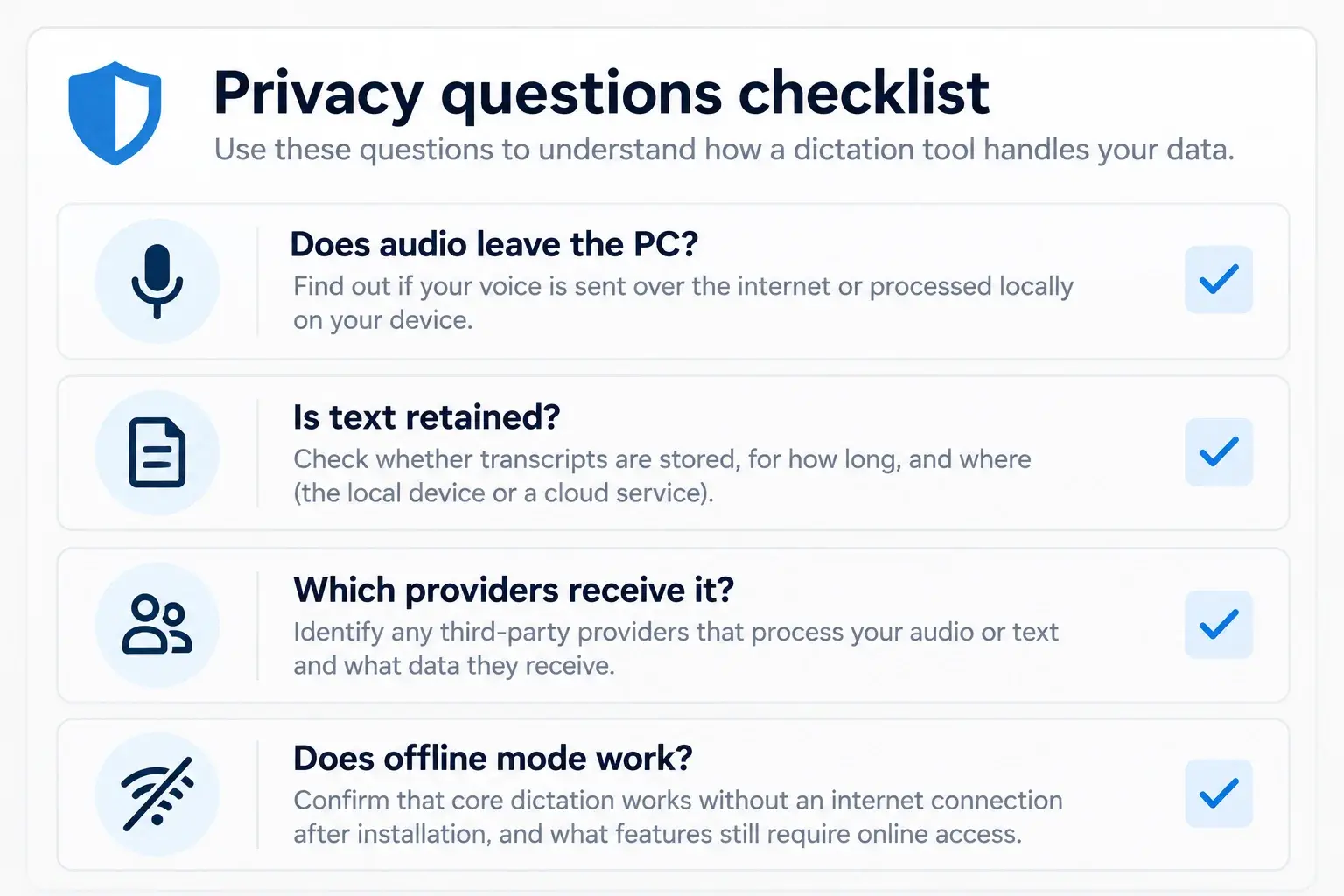
Ask four concrete questions
A privacy review becomes much clearer when it is expressed as ordinary, answerable questions:
- Does microphone audio leave this PC for speech recognition, or is it transcribed on the device?
- Is the transcript retained, and if so, where, for how long, and under whose control?
- Which providers receive audio, text, corrections, or surrounding app context when optional features are used?
- Can the normal dictation workflow keep working without an internet connection after the app and model are installed?
Trace the workflow that actually runs
The answer is often hidden in the details between speaking and typing. A cloud transcription workflow generally sends microphone audio across the internet to a provider, which processes it and returns text. A local workflow runs the speech-recognition model on the Windows device that captured the audio.
For Sonavi, core dictation follows the local route after a Whisper model is installed: microphone audio is transcribed on your Windows device, and the resulting text is sent to the active Windows app. You can choose to keep local history on the device. That last destination still matters, because the app receiving the text may have its own storage or synchronization behavior.
Model downloads, software updates, website resources, feedback, and support can require a network connection. They are not the same event as the dictation request. A trustworthy explanation separates those paths instead of blurring them into a single claim that an app is either always online or never online.
Sonavi's local dictation workflow
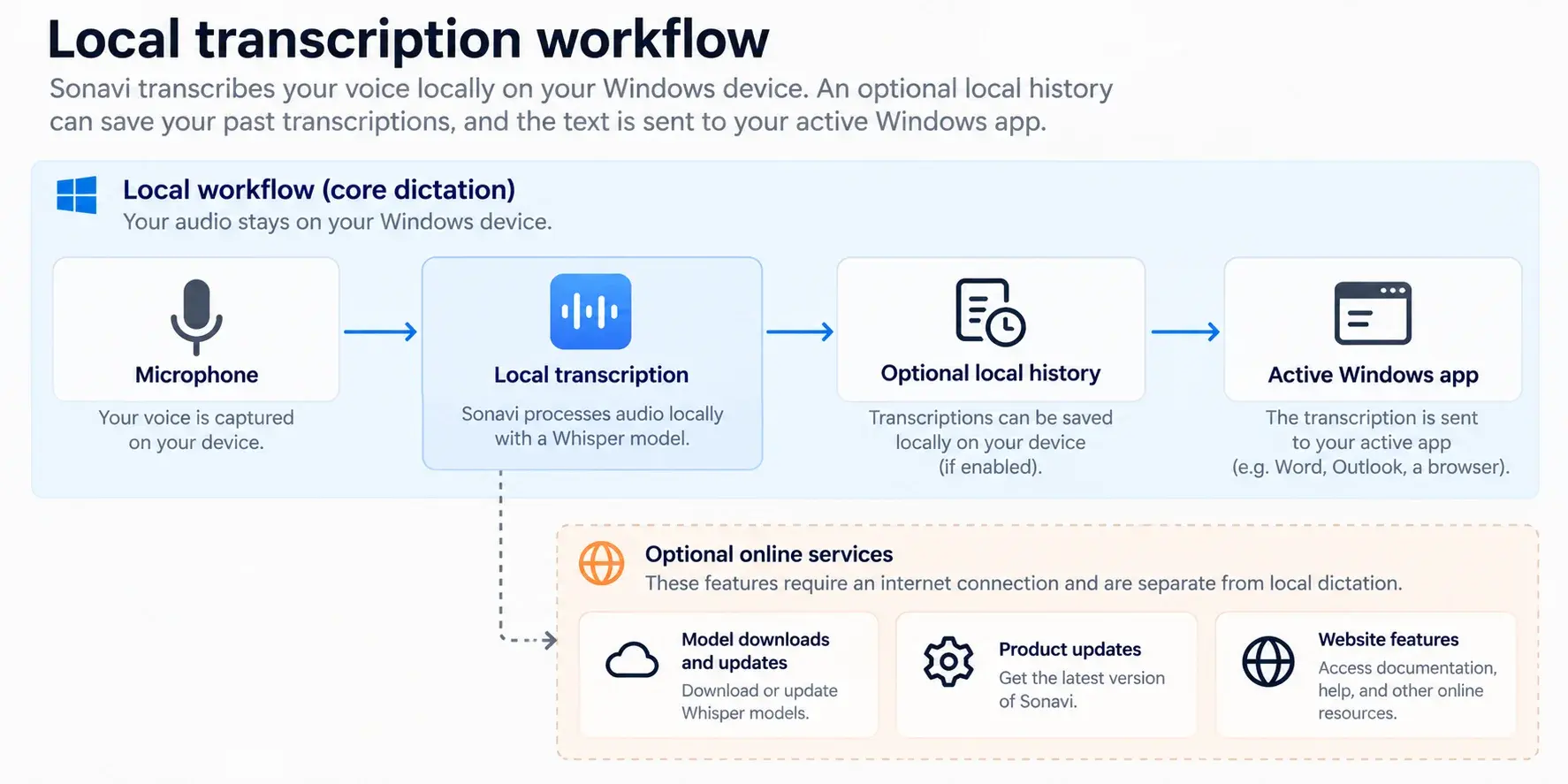
Look for the step after speech recognition
Local transcription is valuable, but it is not automatically the whole workflow. Some tools can recognize speech on-device and then send the transcript, a prompt, or app context to an online service for rewriting, formatting, summaries, synchronization, or cross-device access. Those features may be useful; they simply create another data path to understand.
This is why a yes-or-no question such as “is it local?” is only a starting point. Ask which feature is running, what it receives, and whether that feature changes where your words travel. A clear product should make it possible to distinguish core dictation from separately chosen online features.
Test offline dictation yourself
After you have installed Sonavi and at least one transcription model, you can verify the core path in a few minutes:
- Download a Whisper model in Sonavi while your PC is connected to the internet.
- Disconnect Wi-Fi or Ethernet so the PC has no internet connection.
- Open Notepad or another local text field, dictate a short sentence, and confirm that the text appears.
A simple offline verification
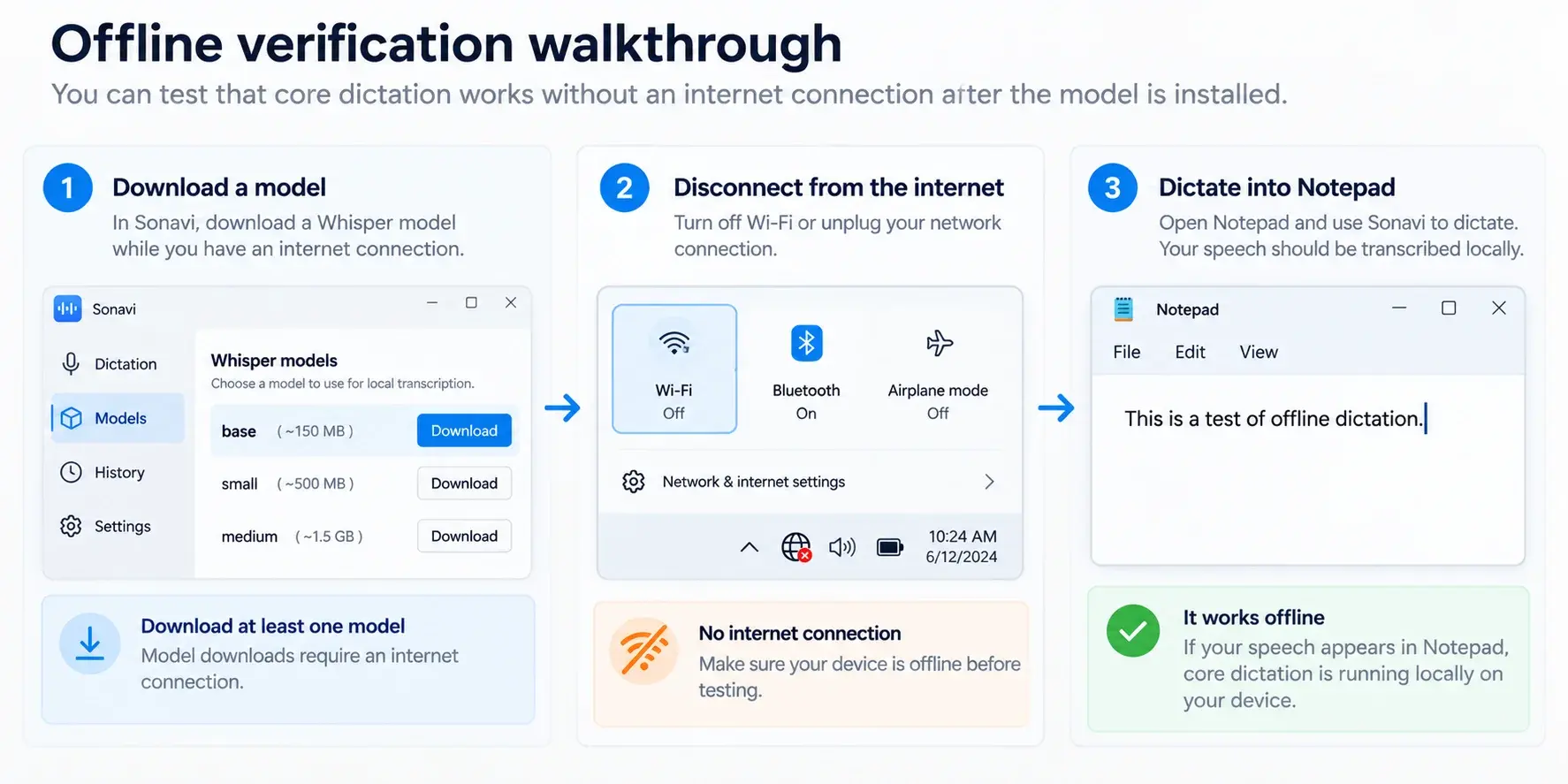
Treat the offline test as evidence, not magic
If that test works, it gives you direct evidence about a useful, narrow claim: core speech recognition does not need a remote transcription request. It is a more concrete signal than a marketing label, because the computer had no route to an online speech service while it created the text.
The test does not prove every security property of your device or every behavior of every optional feature. It should not. Its value is that it answers one important question cleanly, and it encourages the same habit everywhere else: test or document each boundary rather than assuming one reassuring answer covers the whole product.
Know what local processing does not protect
Keeping transcription on your PC removes an unnecessary remote-data step. It does not make an unlocked or compromised PC safe. Malware, another person using an unlocked device, clipboard access, and the app receiving the final text can all affect what happens after dictation.
The practical response is not to give up on local processing; it is to give it the right job. Use device security, a protected Windows account, and sensible destination-app settings alongside local transcription. Review optional history and update choices too. Privacy improves when each boundary is visible and each one is treated honestly.
The boundary around local processing
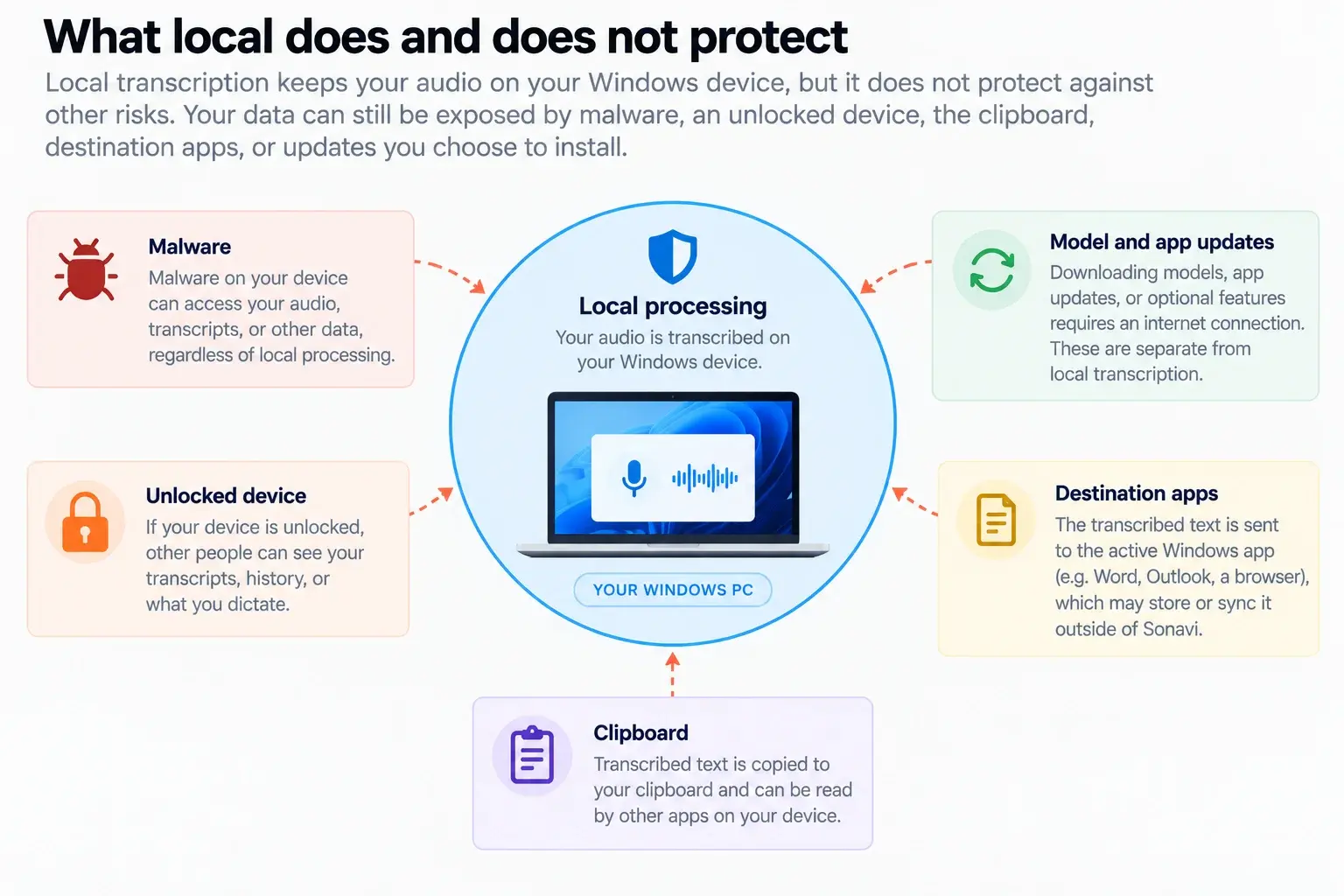
The useful standard
Do not look for a perfect privacy label. Look for an understandable workflow: where speech is processed, where text goes next, which options change that route, and what you can verify yourself.
FAQs
Is a no-training policy enough to make dictation private?
No. A no-training policy can answer how a service uses data for model improvement, but you should still ask where audio is processed, whether it is retained, which providers receive it, and whether optional features send text or context elsewhere.
Does offline dictation prove that every part of an app is private?
No. It provides evidence that the tested core transcription path can work without a remote speech request. It does not replace reviewing optional online features, device security, destination-app behavior, or the app's privacy documentation.
Does local dictation mean Sonavi never needs the internet?
No. Core dictation can work offline after Sonavi and a model are installed. Internet access can still be needed for separate activities such as model delivery, software updates, website use, feedback, or support.
Where does the text go after Sonavi transcribes it?
Sonavi sends the transcript to the active Windows app. That app's own storage, synchronization, and sharing settings are separate from Sonavi's local speech-recognition step and should be considered in your privacy review.